Restaurant sales reports and a VAT summary for UAE cafés, built from your own orders
Cupcloud's sales reports are twelve reports for cafés, cafeterias and restaurants in the UAE, from the daily closing and item sales to profit and loss and a VAT summary. They are built from the café's own orders and back-office records, in AED and on UAE café days, and each one can be compared with the period before, exported as CSV or printed. Reports are for the café's managers only.
Most café owners know roughly how the day went. Roughly is the problem: the cash in the drawer does not match the till, the supplier bills sit in a drawer, and at the end of the quarter someone has to work out the VAT from a pile of receipts. Cupcloud puts the orders, the purchases, the expenses and the payroll in one place, so the numbers you need are already worked out, and every total adds up to the rows behind it.
Numbers you can check
A report that does not add up to the orders behind it is worse than no report. In Cupcloud every total is calculated from the same rows shown under it, and each report ends with the orders, bills or expenses it was built from, linked to the record. The screen, the printout and the CSV come from the same data, so they cannot disagree.
Each report also says, in plain words, how its numbers are worked out: what counts as a sale, when a purchase is counted, what the cash figure includes. Days follow UAE time, so an order at half past midnight belongs to the new day.
The daily closing report
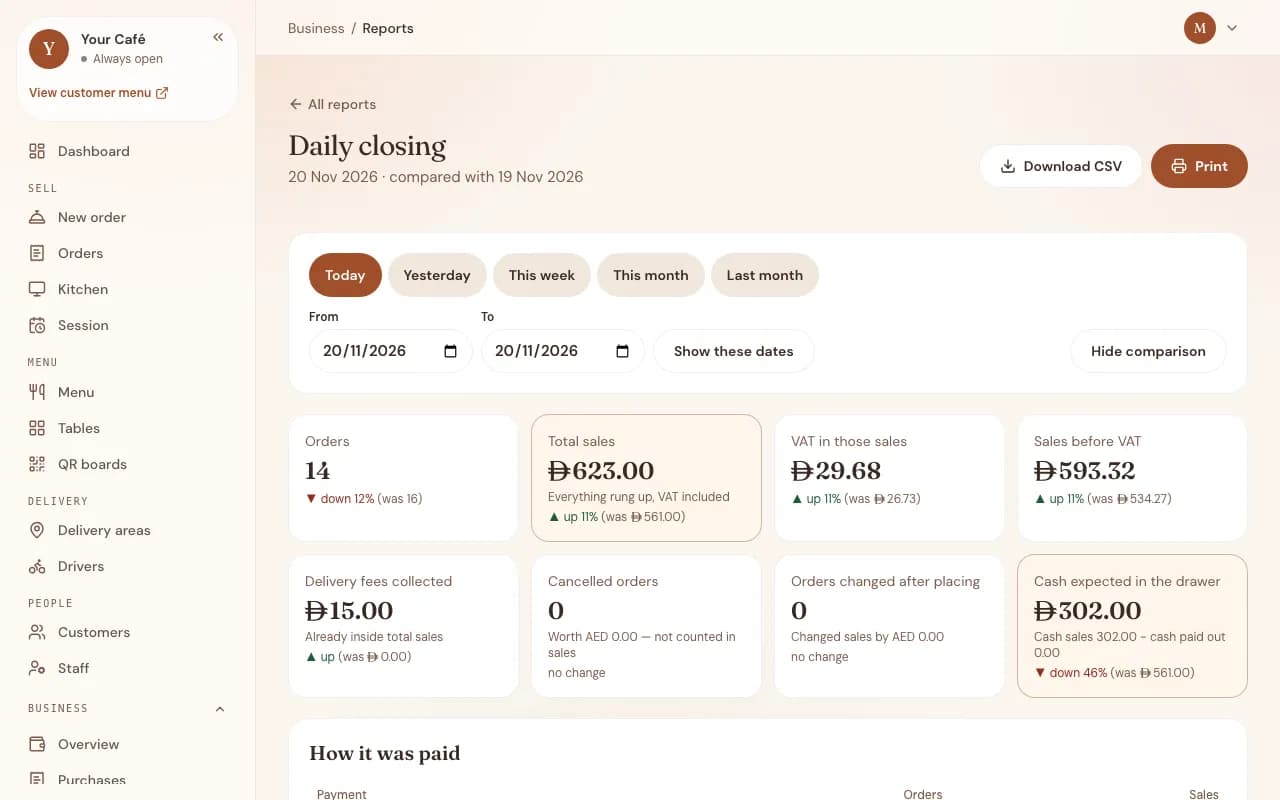
The daily closing is the one most owners open first. It shows the day's orders and total sales, the VAT and the sales before VAT, sales by payment and by order type, delivery fees, cancellations with their value, orders that were changed, cash paid out, and the cash you should expect in the drawer.
It sits alongside the X and Z reports of the day close, which handle the cash count at the counter. The daily closing is the manager's view of the same day, with the orders behind every figure.
What sells, when, and who served it
Six reports look at the business from the customer's side of the counter. Use them to plan staffing, cut slow items and see which delivery areas are worth the drive.
- Sales: over time, by hour, by weekday, by order type and by payment, with the average order
- Items and categories: units and sales per item and category, the slowest sellers and items that did not sell
- Orders and service: cancellations with the reason and who cancelled, changed orders, preparation and delivery times
- Delivery: orders, sales, fees, free deliveries and delivery time per delivery area
- Customers: new and returning customers and the biggest spenders
- Staff activity: orders taken at the counter, cancellations, changes and payments marked, per staff member
What it costs: purchases, expenses and payroll
Three reports come from the back office, where you record supplier bills, expenses, rent and staff pay. Purchases and suppliers shows spend by supplier and category and what is owed or overdue today. Expenses shows spending by category and by month. Payroll shows the monthly cost of each person, net pay, what has been paid and advances still to take back.
These records are voided, never deleted, so a cancelled bill stays visible in the history and the totals stay honest.
Profit and loss report for your café
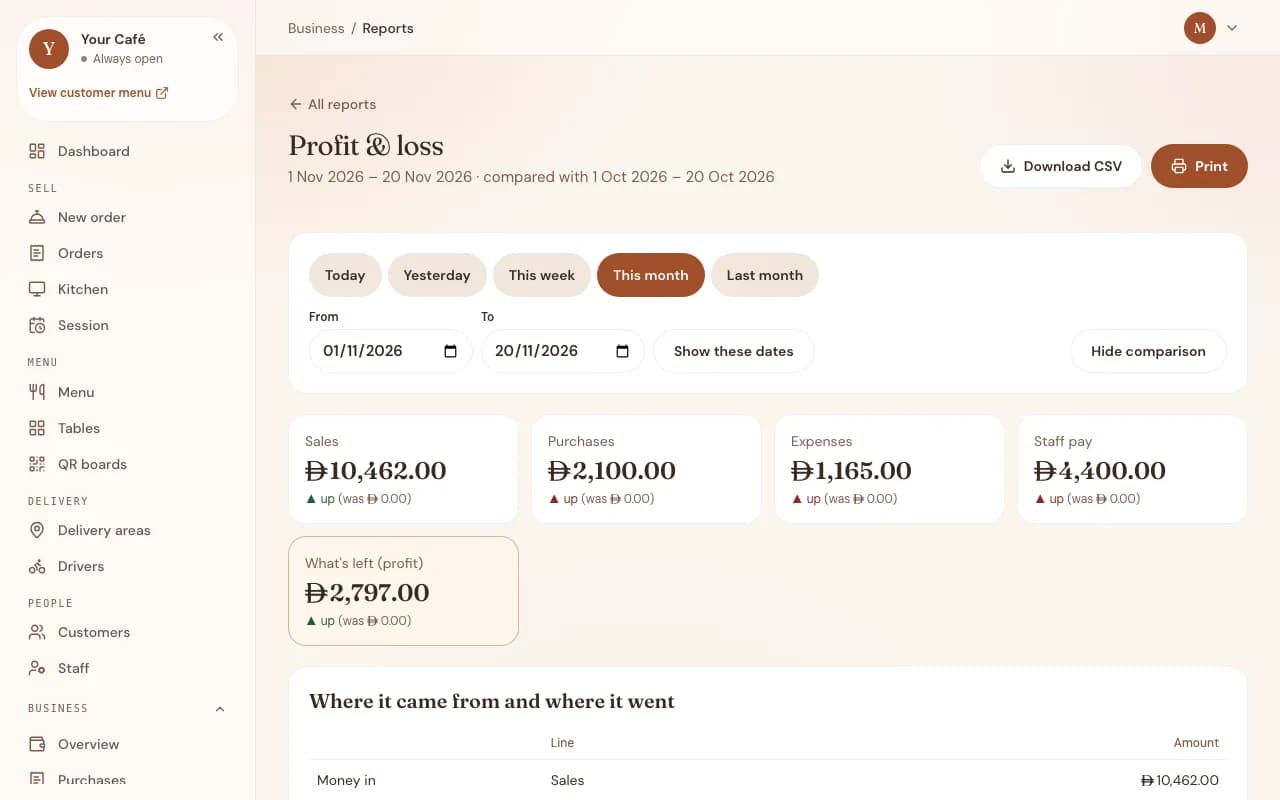
The profit and loss report puts it together: sales minus purchases minus expenses minus staff pay equals what is left, line by line and month by month. Sales count on the order date, purchases on the bill date, and expenses and staff pay when they are paid.
For a café with a TRN every figure is before VAT, because VAT is settled separately. For a café without a TRN the full amounts are used. It is a clear money-in, money-out view of the café, not audited accounts.
VAT summary for cafés with a TRN
UAE VAT is 5%, and a café registered for VAT has to know what it owes. The VAT summary shows VAT on sales minus VAT on purchases and expenses, which gives the VAT to pay for the period you choose. It needs a TRN; without one, the page explains why and shows no return.
Reports are information to help you and your accountant. They are not tax advice, and Cupcloud does not file anything with the tax authority for you.
Ranges, compare, CSV, print, and the activity log
Every report takes a period: today, yesterday, this week, this month, last month or your own dates. Compare shows each headline figure against the period before. Download a CSV for your accountant or a spreadsheet, or print an A4 page with your café's name. On a phone, tables turn into cards you can read.
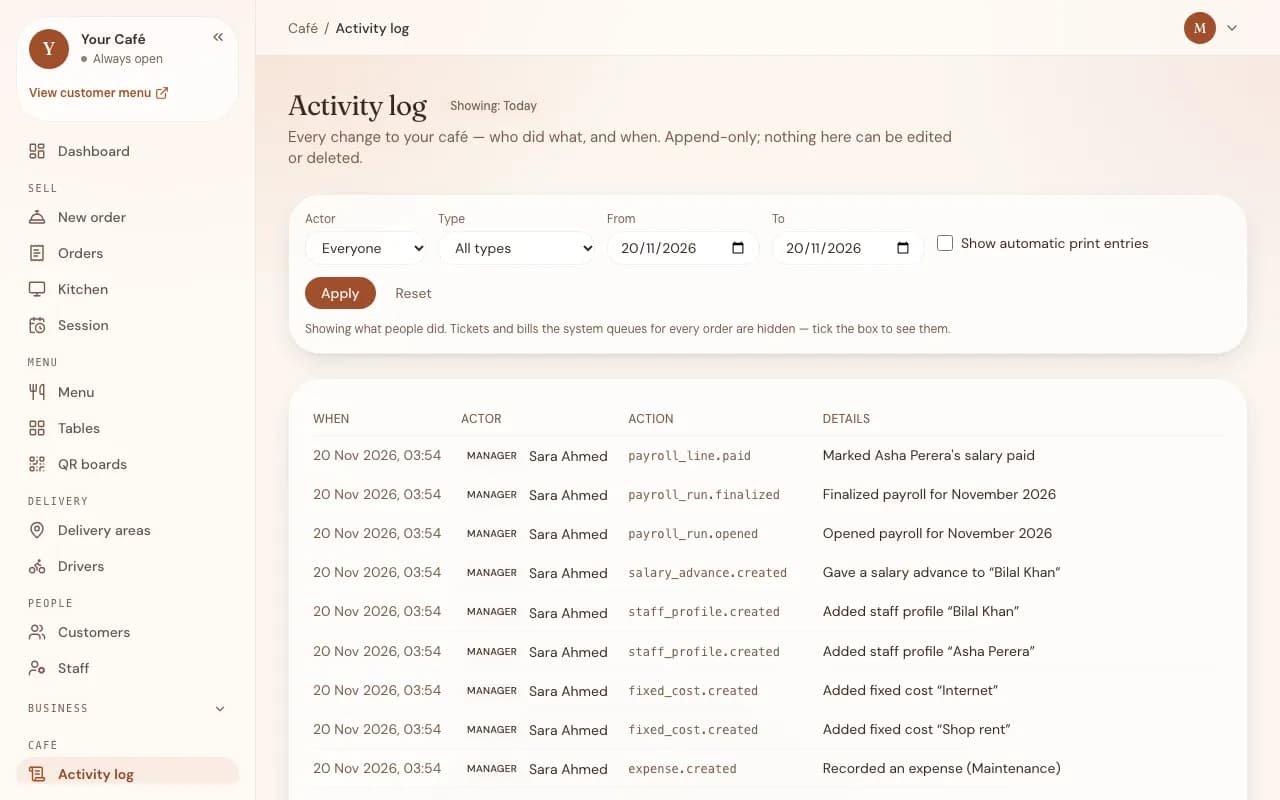
Alongside the reports, the online payments report splits online card money by gateway, the customer list shows each customer's order history and spend, and the activity log shows managers who did what and when, including each settings change before and after. Reports themselves are for managers only.
Common questions
Who can see the sales reports?
Managers only. Cashiers, waiters and drivers do not see reports, purchases, expenses or payroll.
Does Cupcloud file my VAT return?
No. The VAT summary shows VAT on sales minus VAT on purchases and expenses for a café with a TRN, so you or your accountant can prepare the return. It is information, not tax advice.
Can I export reports to Excel or my accountant?
Yes, every report downloads as a CSV file that opens in Excel or Google Sheets. There is no direct link to accounting software such as Xero, QuickBooks or Zoho.
Does the profit and loss report include stock?
No. Cupcloud has no inventory or recipe stock, so profit and loss uses purchase bills as recorded, not the stock you have left.
Can I compare this month with last month?
Yes. Pick This month and turn on Compare to see each headline figure against the month before.
How do I start, and what does it cost?
Sign up online for a 14-day free trial, no card needed, or message us on WhatsApp and our team will set it up with you. Pricing after the trial is on request, with no commission on orders.