A phone order system for restaurants and cafés that remembers your regular callers
Cupcloud's phone order system is part of the counter order screen for cafés, cafeterias and restaurants in the UAE. The cashier types the caller's mobile, finds the customer within that café, picks one of their saved delivery addresses or repeats their last order, and places it. The order then goes to the same queue, kitchen screen, tickets and labels as every other order.
The phone rings at lunchtime. It is the same customer from the same tower who orders three times a week, and the cashier still asks for the building, the floor, the flat and the landmark, writes it on a pad and hopes the driver can read it. Cupcloud keeps that customer's details in your café's own records, so the second call takes seconds and the address is right every time.
Phone orders still matter in the UAE
Plenty of customers would rather call the shop they know than open an app. Offices order lunch for the whole team, families call the cafeteria downstairs, and regulars just want to say "the usual". For many cafés and small restaurants, the phone is still the biggest delivery channel.
The trouble is not the call. It is everything written on paper after it: a wrong flat number, a missed option, an order that never reached the kitchen, and no record of who ordered what last week.
Find the caller by mobile number
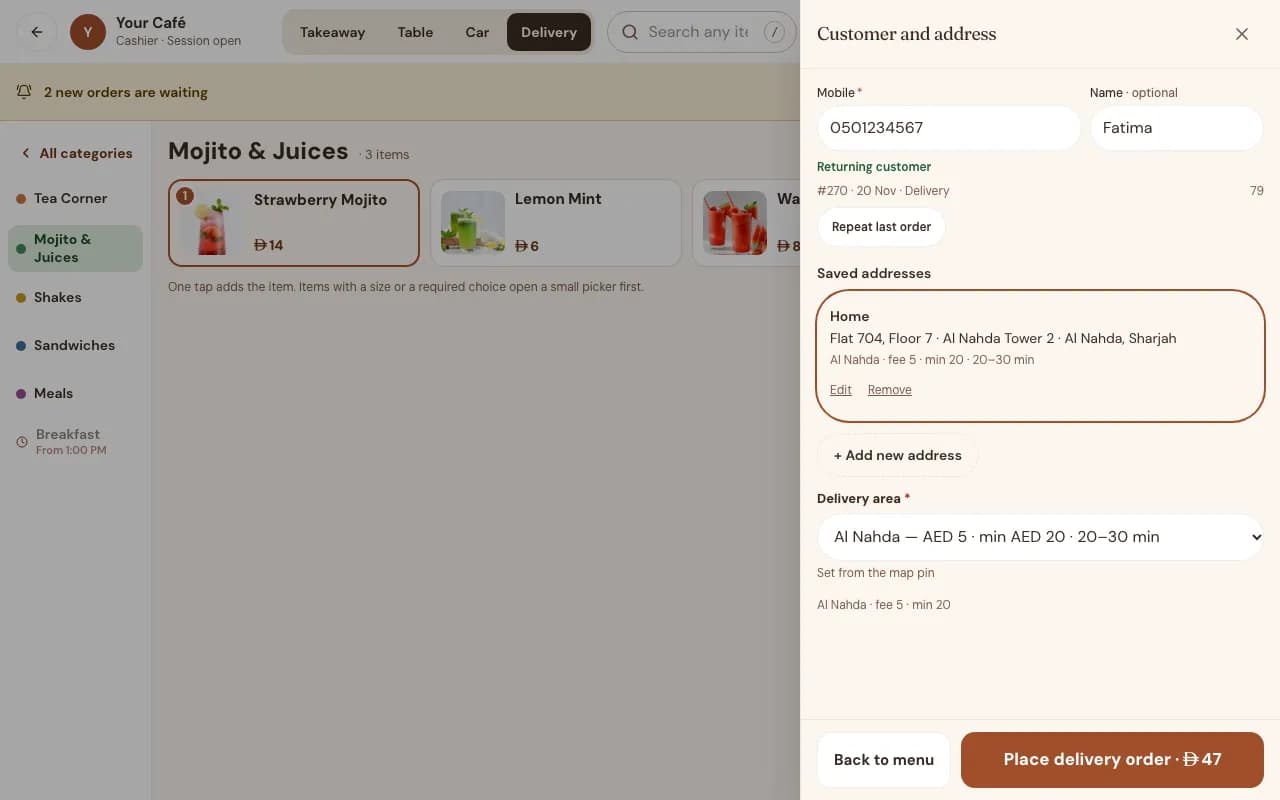
On the order screen, choose Delivery and the customer card opens. The cashier types the caller's UAE mobile and taps Find customer. The search looks only at this café's own customers, never another café's.
If the customer is found, the card shows their name, every saved address with its delivery area, fee, minimum and delivery time, and their last five orders. If not, the cashier types the name and address once, and the customer is saved when the order is placed. Items can be added before or after the customer, so nothing waits on the other.
Saved addresses and the delivery area from the pin
A customer's addresses are one list. Addresses they saved themselves when ordering online from your menu, and addresses your staff took down on earlier phone calls, sit together, newest first. One tap picks the right one, and the same place typed twice is not saved twice.
A new address takes the same details the customer's own checkout asks for: apartment, villa or office, with building, floor and flat, villa number and street, or company name, plus city and emirate. If the cashier drops a pin on the map, the delivery area, its fee and its minimum come from the pin. Without a pin, the cashier names the area. An order below the area's minimum is flagged, not blocked: on the phone, that is the cashier's call.
- Home, Work or your own label for each address
- The delivery fee and time for the area shown before the order is placed
- Edit or remove a saved address; past orders keep their own copy
Repeat the last order in one tap
Regulars often order the same thing. Repeat last order fills the cart with their previous order at today's prices. If something has sold out or left the menu since, the screen names it and leaves it out, so the cashier can offer something else while the customer is still on the line.
Phone pickup and the Not collected reminder
Not every caller wants delivery. For a takeaway the customer will collect, the cashier adds a call-back number and a name. That makes it a phone pickup: the queue, the kitchen screen and the kitchen ticket all show it, with the number ready to call.
If a phone pickup has been ready longer than the minutes you set, the queue shows "Not collected — call customer", so nobody forgets the bag on the shelf. Set the minutes in Settings, or turn the reminder off.
The same queue, kitchen and labels as every order
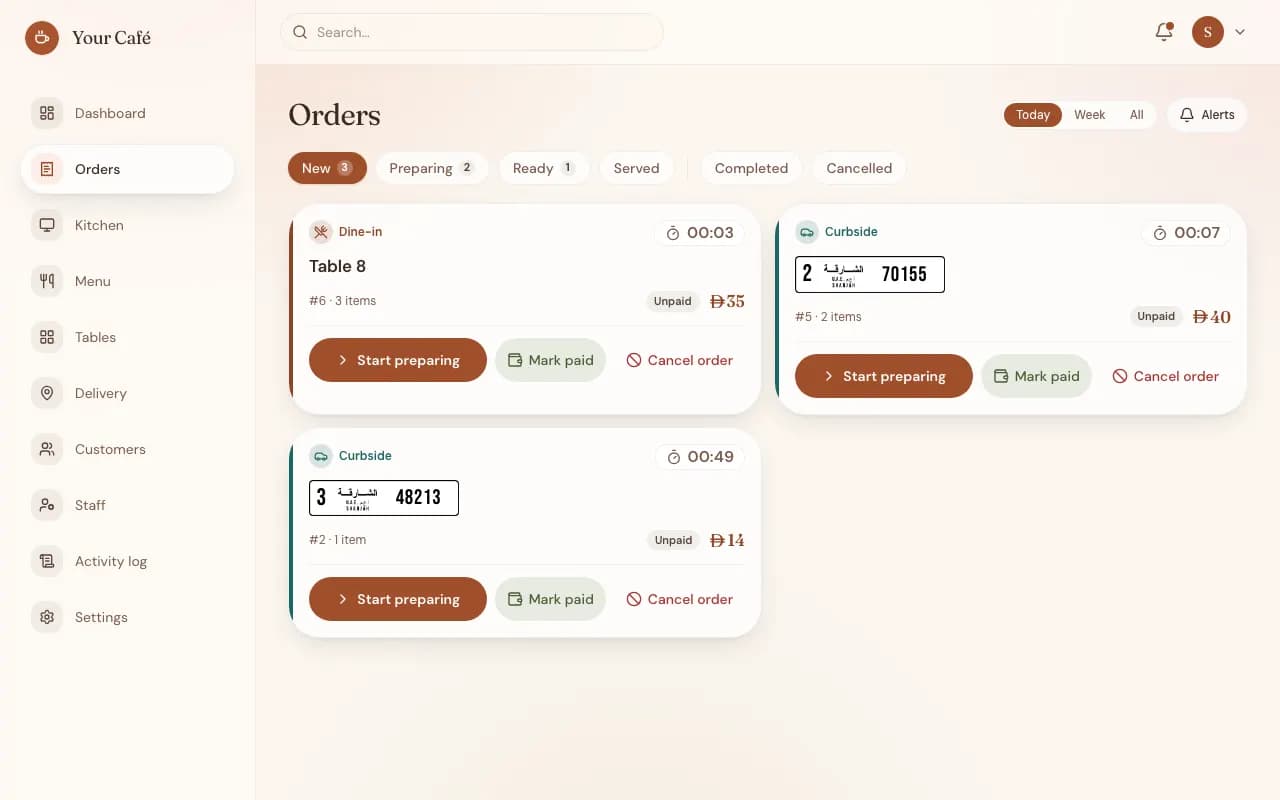
A phone order is not a separate system. It joins the live order queue with table, car, online delivery and counter orders, reaches the kitchen screen, prints the kitchen ticket and item labels if you use them, and goes to your own drivers like any delivery.
On staff screens the customer's phone shows as a number you can tap, with Call and WhatsApp buttons, on the queue, the order detail, the driver's page and, if you switch it on, the kitchen screen. When the driver cannot find the gate, one tap reaches the customer.
Privacy: only a manager or cashier can look up customers
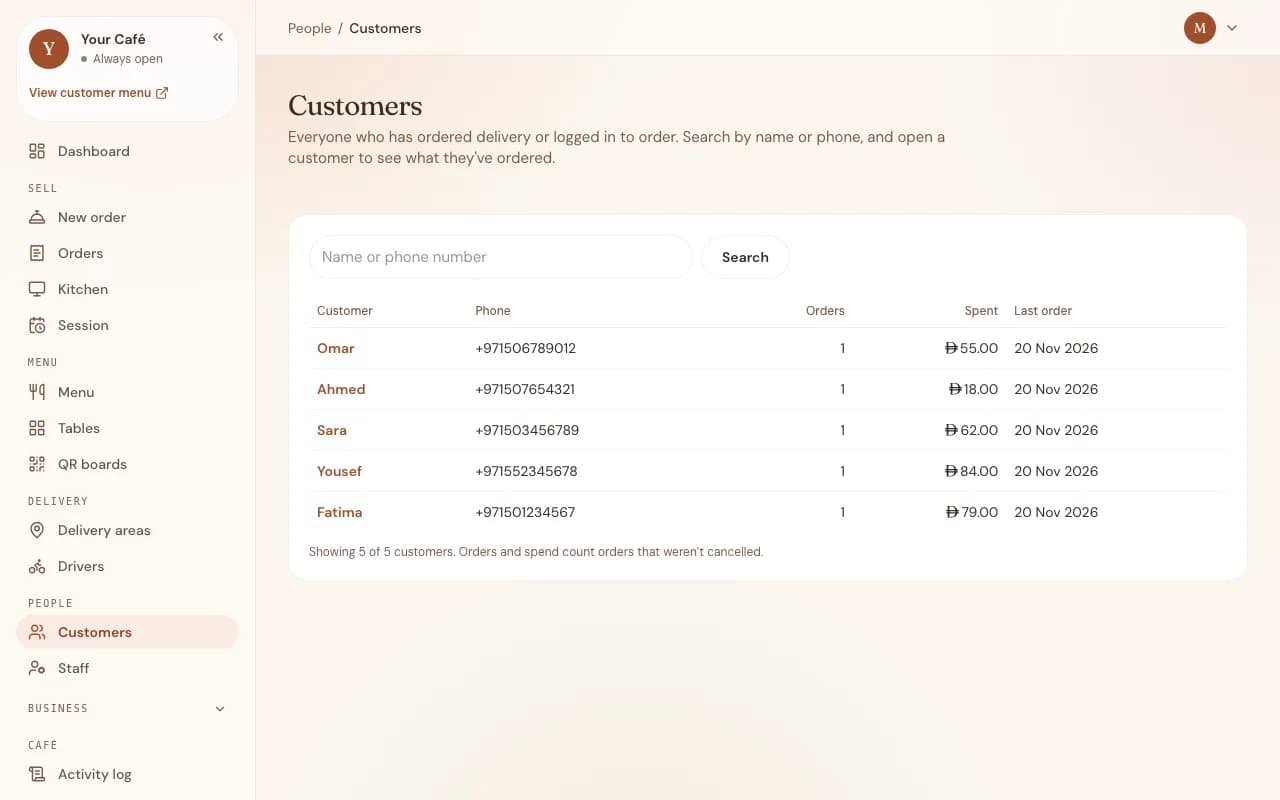
A customer list is personal data, so Cupcloud keeps it tight. Only a manager or a cashier of your café can search customers by mobile; waiters and drivers cannot, and the database checks the role itself, not just the screen. Each staff member can make a limited number of lookups per hour.
A number typed by a customer on your menu never reveals anyone's saved details. The customer list, with each customer's order history and spend, is open to your managers and cashiers.
Common questions
How do I take orders by phone with Cupcloud?
On the order screen, choose Delivery or Takeaway, type the caller's mobile, pick or add the address, add the items and place the order. It goes straight to the queue and the kitchen.
Does it connect to my phone line or show caller ID?
No. Cupcloud does not connect to your phone line; the cashier types the caller's number to find them.
Can a waiter search for customers?
No. Only a manager or a cashier can look customers up by mobile. A waiter can still take table and counter orders on the same screen.
What if the address is outside my delivery areas?
A pin outside every delivery area is refused until the cashier names an area for it. That way a delivery is never sent without an area, fee and minimum.
Does the customer get an SMS or WhatsApp confirmation?
Not automatically. Cupcloud does not send SMS or WhatsApp messages by itself, but staff can tap the WhatsApp button on the order to message the customer.
How do I start, and what does it cost?
Sign up online for a 14-day free trial, no card needed, or message us on WhatsApp and our team will set it up with you. Pricing after the trial is on request, with no commission on orders.